
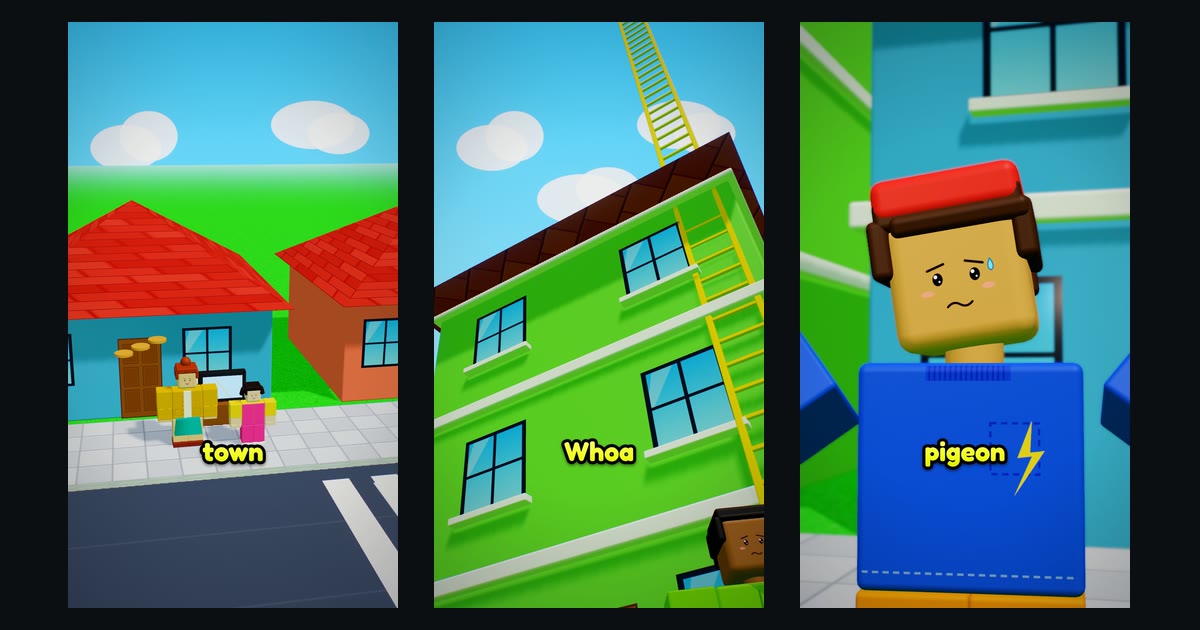
To make an "In this town..." Roblox AI video (also viral in Spanish feeds as "En este pueblo..."), build a tight four-beat script—a strange town rule, someone breaking it, a visible consequence, and a final twist—and turn it into a 9:16 vertical (1080×1920) MP4 with narration and single-word captions. Start with a 35–45 second clip (6–8 spoken lines) before attempting longer stories; short scripts make pacing, visual continuity, and ending timing much easier to judge.
Three practical workflows exist today depending on your device and how much manual control you want: a browser-based 3D generator like Vhoo Roblox Video AI, a desktop Roblox Studio plugin such as RoShot Studio, or manual keyframe animation in Roblox Studio finished in CapCut.
Compare the Three Ways to Make "In This Town" Videos
| Method | Best fit | Requirements | Strengths | Trade-offs |
|---|---|---|---|---|
| Vhoo Roblox Video AI | Fast vertical MP4 on phone or desktop | Web browser only (no downloads) | Generates 3D blocky scenes, verbatim voiceover, BGM/SFX, and yellow captions in one pass; optional scene edits afterward | Stylized 3D Roblox-inspired sets rather than native Roblox game maps |
| Roblox Studio + RoShot Studio | Authentic in-engine Roblox game visuals | PC/Mac with Roblox Studio + plugin | Uses real Roblox Studio environments and avatars; lets you re-shoot individual shots before exporting MP4 | Desktop-only setup; requires installing Roblox Studio and configuring scenes/voices |
| Roblox Studio Animation Editor + CapCut | Custom choreography and exact camera paths | PC/Mac + Roblox Studio + video editor | Complete control over every pose, transition, sound cue, and caption frame | Takes hours per short to animate, record audio, and time subtitles manually |
Choose Roblox Studio + RoShot if native in-game Roblox maps and avatar selection are your top priority on desktop. Choose a browser generator if you are working from a phone, testing hooks quickly, or want to skip software setup and manual caption editing.
Write a Script That Actually Translates Into 3D Scenes
Most weak AI Roblox shorts fail at the script stage, not the renderer. Keep four rules in mind before generating:
- Put the rule in line 1: Start immediately with "In this town, ..." (or "En este pueblo, ..."). Skip channel intros—viewers decide whether to stay in the first two seconds.
- Write actions, not feelings: 3D scenes can animate a flickering streetlight, a locked doorknob turning, or a giant shopping cart—not abstract lines like "I felt a chill of pure terror down my spine." Tie every sentence to a visible object, movement, or facial reaction.
- Avoid impossible shot choreography: Complex reflections walking out of mirrors or multi-person crowd fights are the easiest beats to glitch in any tool. When a beat is hard to stage, cut to the protagonist's stunned close-up and let narration and a sound cue (footsteps, three knocks, a sudden click) carry the moment.
- Stop immediately on the twist: Cut right after the punchline or final reveal. Adding an extra summary sentence afterward kills rewatch momentum.
If your story includes a second character speaking a standalone line, prefix it with a speaker label (for example, Security Guard: Don't move a muscle.) so the audio step can assign a distinct character voice while still reading your exact wording.
Two Fresh 40-Second Scripts Ready to Test
Both scripts below follow the 4-beat structure (Rule → Break It → Consequence → Twist) and are tuned for a crisp ~35–45 second vertical test video.
1. Horror: The 11:59 PM Streetlight Rule
| Shot | Spoken line | Visual focus |
|---|---|---|
| 1 | In this town, every streetlight shuts off at exactly 11:59 PM. | Wide shot of a quiet neighborhood street under glowing lamps |
| 2 | If you are still outside when the last bulb clicks dark, you never answer anyone who calls your name. | Protagonist hurrying down the empty sidewalk, glancing at a watch |
| 3 | Last night, my bike chain snapped two blocks from home. | Close-up on the dropped bike on the pavement |
| 4 | One by one, the streetlights snapped off behind me. | Lamps going dark down the block in sequence |
| 5 | Right when the last light died, my best friend called out from the alley. | Dark silhouette standing near the corner |
| 6 | I kept my mouth shut and sprinted straight through my front door. | Protagonist slamming the door and locking the bolt |
| 7 | Then my phone buzzed with a text from my friend: "Why didn't you wave back? I was right behind you." | Glowing phone screen close-up, then cut to black |
2. Comedy: The Whisper-Only Supermarket
In this town, if you speak above a whisper inside the grocery store, everything in your cart doubles in size. I only came in for one normal bag of chips. Then my friend sneezed so loud the cereal aisle rattled. Instantly, my chip bag inflated bigger than a school bus. He yelled, "Sorry!"—and a single grape rolled out like a bowling ball and knocked over the cashier stand. The manager grabbed the loudspeaker to tell us to calm down. Now the entire town is trapped under a 40-foot loaf of bread.
Real Output Example (9:16 Vertical MP4)
Below is a full vertical short rendered directly from a script inside Vhoo—showing the blocky 3D neighborhood, character expressions, verbatim narration, sound effects, and burned-in word-by-word captions:
Step-by-Step Browser Workflow (No Roblox Studio)
1. Enter your script—or draft one with AI Generate
Open Vhoo Roblox Video AI on mobile or desktop.
- For exact wording: Paste one of the 40-second scripts above straight into the Script box. Vhoo narrates every line verbatim without trimming or rewriting it.
- For a full 1–3 minute draft: Click AI Generate and type a single town rule. The story writer detects whether your topic is horror/suspense or comedy so midnight-rule ideas stay tense instead of turning goofy.
2. Generate and inspect the full MP4
Select Generate Now to render the 3D scenes, voiceover, background audio, and pop-in captions into a single 1080×1920 H.264 MP4. When it finishes, watch the clip from start to finish with sound on—checking whether the opening hook lands fast, captions stay readable over dark and bright shots, and the ending cuts cleanly on the twist.
3. Adjust visuals if needed, then download
If the voiceover works well but a scene needs visual polish—such as darker midnight lighting, a tighter close-up on the final beat, or a different outfit color—click Edit Video below the player and describe the visual change. Scene edits update the 3D visuals and render a fresh MP4 while keeping your existing voiceover and timing intact (if you need to change spoken dialogue itself, edit the script and start a new generation).
Once the sequence looks right, click Download MP4 and upload directly to TikTok, YouTube Shorts, or Reels without adding duplicate audio tracks.
Fix Common "In This Town" Video Problems
| What you notice | What to check or change |
|---|---|
| Viewers swipe away in the first 2 seconds | Move the "In this town..." rule to sentence 1 and cut any setup greeting. |
| Scenes feel repetitive or static | Replace internal thoughts with concrete actions, props, or location changes every 1–2 lines. |
| A horror story looks too bright or cheerful | Write explicit night/lighting cues in your script, or use Edit Video to request darker midnight lighting and tighter framing. |
| A complex action glitches on screen | Rewrite that line around a reaction close-up plus a sound cue (knock, buzz, footsteps) instead of complicated multi-character choreography. |
| The ending loses punch | Remove any explanation after the twist line—end right on the reveal. |
Ready to test a script? Paste one into Vhoo Roblox Video AI or draft a new town rule directly in the browser.