
To make a Bulin 47 AI video with your own photo, open the Vhoo Bulin 47 template, replace the example photo, check the displayed credit cost and select Generate. The preset includes the motion clip, audio reference and generation instructions, so you do not need to find a reference video or write a prompt.
The Vhoo Bulin 47 template is designed for a short nighttime freestyle clip in which your character looks back, turns sideways and performs rap. The template uses a 7.5-second motion reference. The published example below is approximately 7.4 seconds long; the exported duration and visual details can vary slightly.
Watch the Bulin 47 AI preview
The Bulin 47 preview is an existing output from the linked Vhoo template. Watch the character's face during the turn, the movement of the hands and shoulders, and the interaction with the surrounding crowd. The preview shows one generated result; a new photo or a new run can produce different details.
What is the Bulin 47 AI effect?
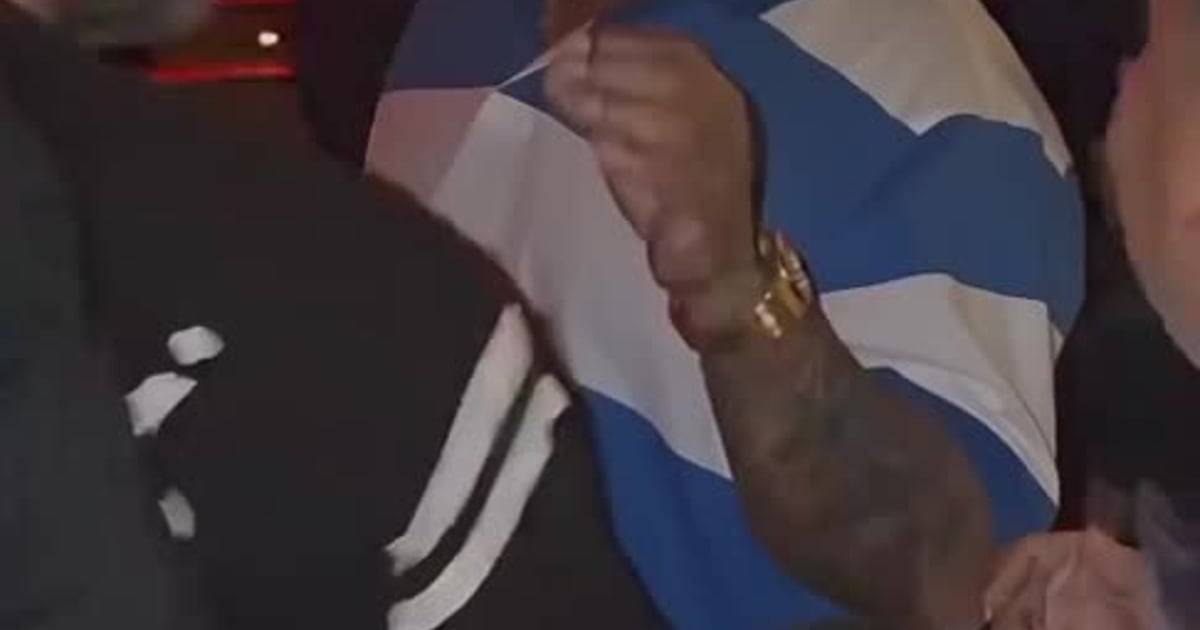
The Bulin 47 AI effect places a replacement character into a freestyle performance. The recognizable scene has red nighttime lighting, a surrounding crowd and someone holding a portable speaker near the lead performer. AI versions change the lead character while using the reference performance to guide gestures, framing and timing.
The Bulin 47 freestyle is associated with Kevin Wai, whose name also appears as Kevin Way in searches. If you found the scene through a “Bulin 47 freestyle AI” or “Kevin Wai Bulin 47” video, compare the preview in this tutorial with the clip you want to recreate before starting a generation.
What you need to make the video
| Item | What the Vhoo Bulin 47 template uses |
|---|---|
| Character photo | One clear photo of the person you want in the performance |
| Motion reference | A preset 7.5-second clip, already included |
| Audio reference | A separate reference recording, already included |
| Prompt | Prepared instructions; no prompt writing required |
| Access | A browser and a Vhoo account to generate |
| Credits | The current amount shown on the Generate button |
The Vhoo Bulin 47 public editor lets you replace the character photo while using the saved performance setup. You do not need to film yourself rapping, install CapCut or upload separate motion and audio files to follow this tutorial.
How to make a Bulin 47 AI video
1. Open the template and preview the result
Open the Bulin 47 AI video generator and watch the saved example under Video result. The example helps you check the setting, framing and performance before spending credits. Sign in to Vhoo when prompted to upload your photo or generate.
2. Replace the example photo
In the Bulin 47 template's Your input panel, use Replace on Image1 to upload your photo. Wait for the thumbnail to show the intended person before continuing. The saved video example can remain visible until your new result is ready; changing the photo alone does not generate a new video.
3. Review the credits and select Generate
Check the credit amount on the Bulin 47 template's Generate button, then submit your request. The public template showed 185 credits when checked on October 11, 2026. Use the live amount before each run because the template configuration or pricing may change; Vhoo pricing explains the available credit options.
4. Check the completed video and download
Play your generated Bulin 47 video from beginning to end with sound. Inspect the face during the sideways turn, the hands near other people and the timing between mouth movements and audio. Use Download result to save the completed clip when you are satisfied with the performance.
Choose a photo that gives the model useful detail
A useful photo for the Bulin 47 AI effect shows one person with a clear face, visible hairstyle and evenly lit features. An upper-body image also supplies clothing and shoulder details for the replacement character. Avoid group photos, heavy blur, strong beauty filters and objects covering the face.
The Vhoo Bulin 47 preset does not require a specific costume. Choose a photo showing the appearance you want the model to follow. If a generated face becomes less recognizable during a turn, try a sharper image with fewer shadows across the face; the replacement character's likeness and outfit can still vary between runs.
Bulin 47 AI questions
Do I need a CapCut template?
The Vhoo Bulin 47 template works in the browser and does not require CapCut. Upload your photo, generate the freestyle clip and download the result. A separate editor is optional if you want to add captions, trim the video or combine the clip with other footage.
Do I need a Bulin 47 AI prompt?
The Vhoo Bulin 47 template already contains the generation instructions and reference media. You can use the preset by replacing the photo without writing a prompt. A text prompt by itself does not supply the motion clip or audio recording used by this workflow.
Does the Bulin 47 AI video have sound?
The Vhoo Bulin 47 preset uses a separate audio reference to guide the generated sound and performance. You do not need to upload an audio file in the public template editor. Audio guidance does not guarantee an identical copy of the reference recording or perfectly synchronized lips, so review your completed video with sound.
Is the Bulin 47 AI generator free?
Generating a Bulin 47 AI video on Vhoo uses credits. You can watch the example before running the template, and the Generate button displays the cost before submission. Check the current quote and your available balance before starting a generation.
Does the effect replace only the face?
The Vhoo Bulin 47 workflow uses the uploaded photo to guide the replacement character's face, hair and clothing. The model generates an edited performance video, so movement and surrounding details may also differ from the reference. Review the complete clip rather than judging the result only by the first frame.
To make your own version, open the Bulin 47 AI template, replace the example photo and review the credit amount before generating. The saved motion and audio references provide the performance setup, while your photo supplies the replacement character.