
Seedream 5.5 Image Generator

Create from a prompt or edit a photo with Seedream 5.5. Combine references, set the exact words for a poster, or generate a transparent PNG for your next layout.

4 credits

What to create with Seedream 5.5

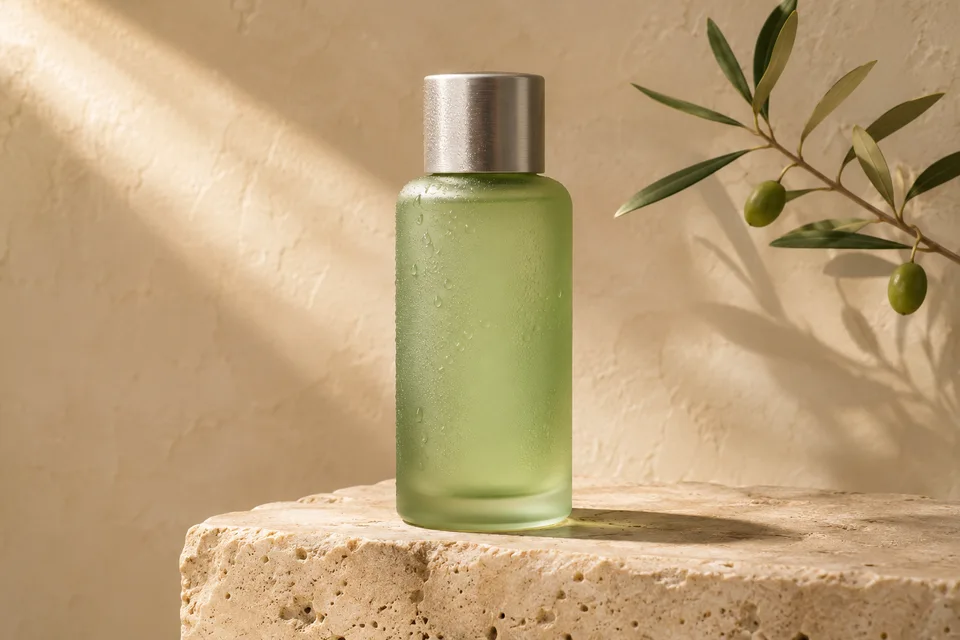
Styling reference with a sage-green skincare bottle on travertine in sunlight beside an olive branch
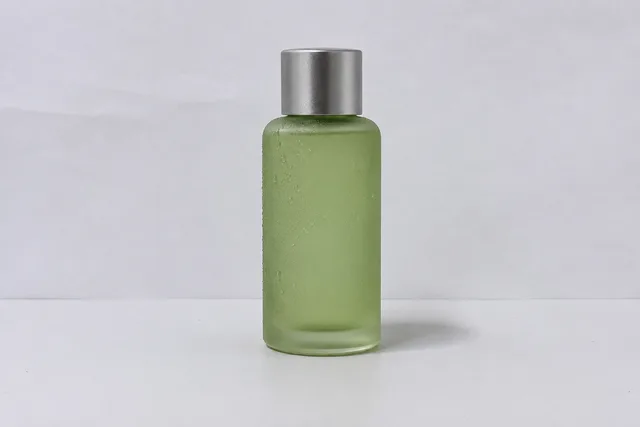
Source bottle on a plain white tabletop
Product reference

Style a product shoot with two references

Start with a plain packshot. Give Seedream the bottle photo for its shape and cap, then a second image for the travertine, olive branch and angled sunlight. Change the setting in your brief while keeping the packaging recognizable.

“Use the bottle in @Image1 and the sunlight and stone in @Image2.”

Embroidered blue and orange kingfisher patch with fine stitching and an ivory edge
Preview background

Create a matching transparent patch

Switch the background beneath the kingfisher to inspect its stitched outline. Use it as a style reference for a heron, then download your new design as a transparent PNG to place on a garment mockup or a sticker sheet.

Peach Season
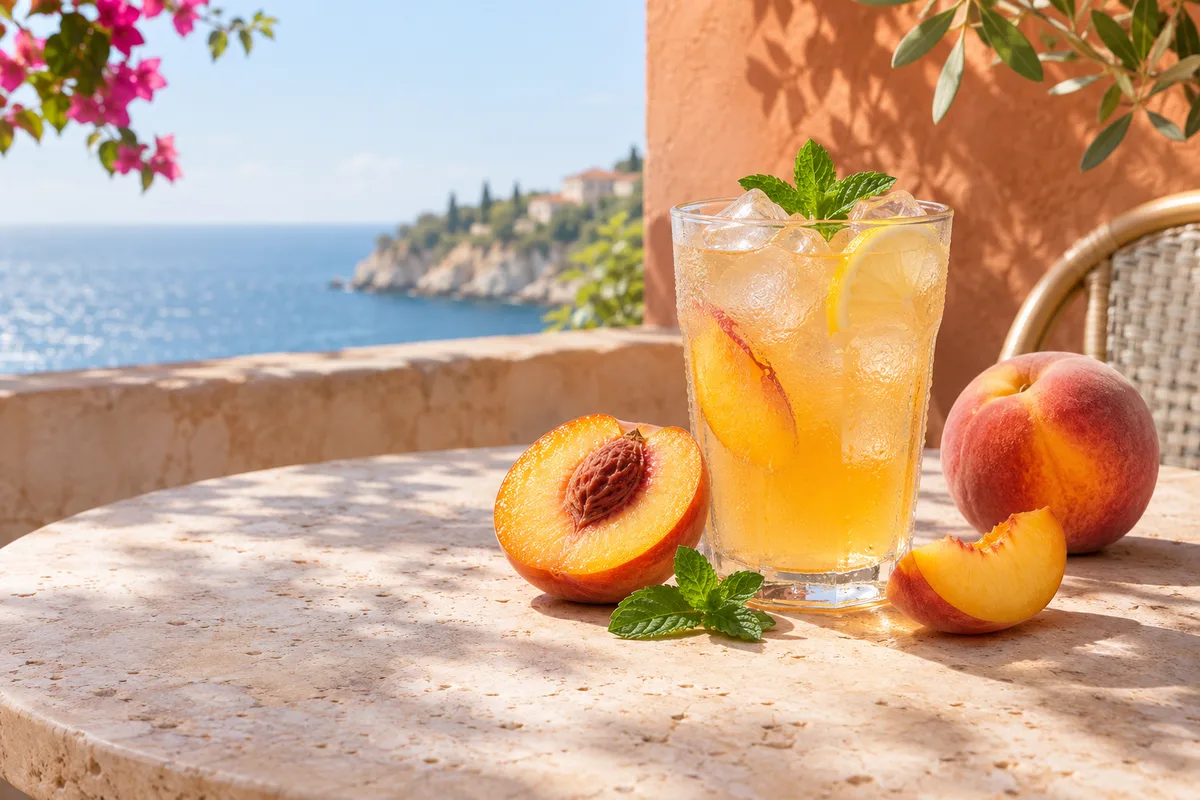
Peach lemonade beside fresh fruit at a seaside café

Design a café poster from text

Build the composition around a short headline. Put “Peach Season” in quotation marks, describe the deep-red lettering and cream border, then place the lemonade photo below the title. The text-only brief opens in a portrait format.

How to use Seedream 5.5

  1. Choose text to image or image to image

    Start with Text to image for a new composition. Choose Image to image when you have a photo, sketch or existing design. Type @ in the prompt to identify which reference supplies the subject, setting or style.

  2. Write a prompt for the change you want

    Give the model a subject, an action and a framing instruction. For a product edit, try “Keep the label and camera angle. Replace the white tabletop with slate and light it from the left.”

  3. Generate and refine your image

    Sign in, review the credits on the Generate button and submit. Open the result in Recent generations. Choose Edit image to use it as the reference for your next change, or Download to save it.

Seedream 5.5 output settings and credit costs

1K, 1.5K and 2K image pricing

The price covers one output image and each reference you add. Try a composition at 1K or 1.5K, then choose 2K when fine lettering or surface texture matters.

Credits per generated image by resolution and number of reference images
ResolutionText only1 reference2 references
1K468
1.5K468
2K7910

Aspect ratios for posters, posts and banners

Use 2:3 for a portrait poster, 1:1 for a square product tile, or 16:9 for a wide banner. Tell the model where to leave room for a headline so the subject fits the final layout.

JPEG, PNG and transparent backgrounds

Choose JPEG for a photo with a finished background. Choose PNG for lettering or illustration. For a cutout, select PNG and set Background to Transparent so you can place the artwork over another color or photo.

Split a finished design into PNG layers

Already have the poster as one flat image? Separate the background, lettering and objects in one run. Download individual pieces to move the subject or replace the headline in your design editor.

Open layer splitter

Seedream 5.5 FAQ

Create an image

Which reference images can I upload?

Add up to ten JPG, PNG, WebP or GIF files, up to 10 MB each. For a product edit, choose a sharp photo that shows the whole object. A second angle is helpful when the cap, label or silhouette is partly hidden.

Can I change just the words on a poster?

Upload the poster in Image to image mode. Quote the old headline and its replacement, then specify which letter color, alignment and surrounding artwork to keep. Check the spelling in the full-size result before downloading.

Can I get the background and lettering as separate files?

Open the finished image in Recent generations and choose Split into layers. The splitter accepts one flat image and lets you download the background and individual transparent PNGs.

Will my download include a watermark?

Accounts with a qualifying purchase can download the original file. Other raster downloads are saved as watermarked PNGs. Open a completed image in Recent generations to download it.