
Text to Image AI
Text to Image AI for ideas worth seeing
Create original visuals with Text to Image AI. Describe a product concept, an illustration or a scene, choose the available image settings and generate from words alone. Start with a clear subject; refine the light, materials and composition as you go.
Create an image from words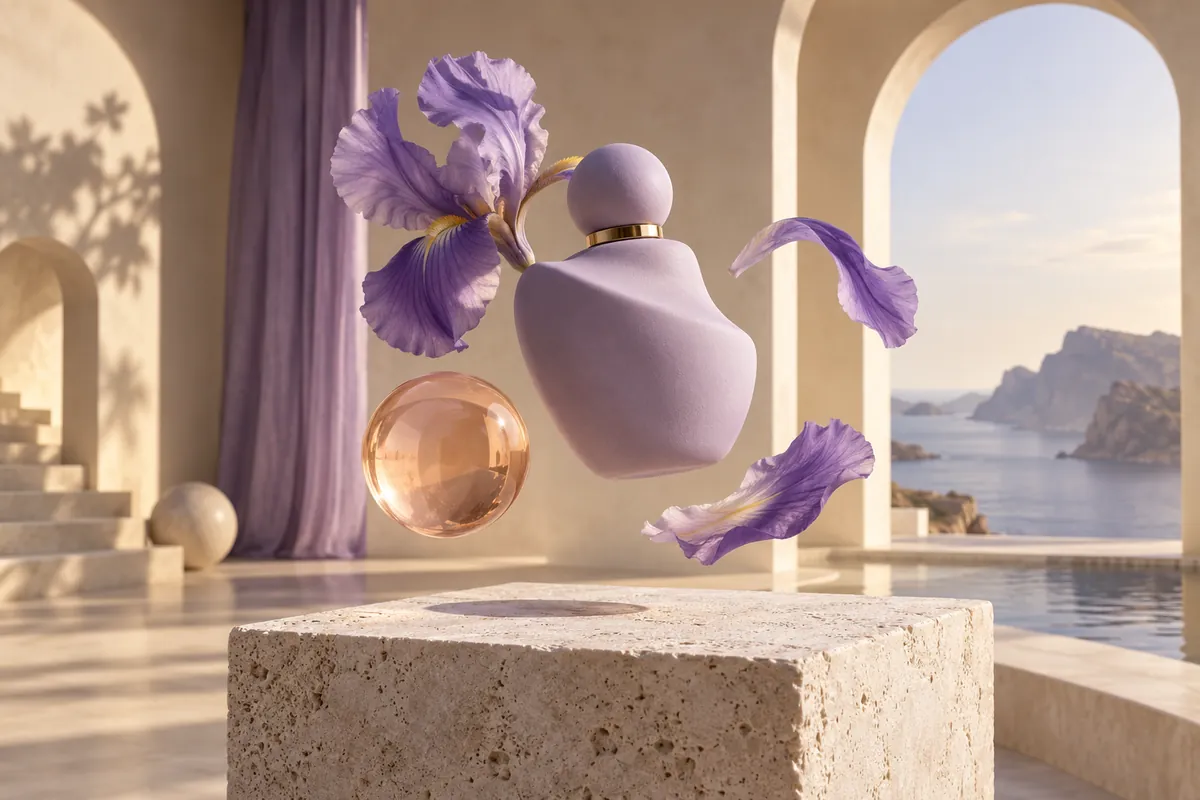
From words to visuals
Text to Image AI for product concepts and illustrations
Give your idea a subject, a setting and a visual language. Text to Image AI can explore a sculptural perfume bottle, an editorial illustration or an imagined environment before you have a photo to work from.
- Subject
- A lavender glass perfume bottle on a stone pedestal.
- Materials and setting
- Peach glass, pale plaster and scattered iris petals.
- Light and framing
- Soft side light, a wide composition and space for a headline.
Prompt to image
A Text to Image AI prompt with a clear visual brief
Specific choices are easier to direct than a string of quality words. Tell the AI image generator from text what the viewer should see: the object, its surroundings, the medium and the lighting.
For an illustration, describe the drawing style and palette. For a product concept, describe materials and camera angle. Change one decision between attempts so you can see which instruction improved the image.
How to generate images with Text to Image AI
Write the scene
Describe a subject, its setting and a visual style. No photo upload is required in Text to Image mode.
Choose the format
Select an available model, aspect ratio and resolution. Compose for the place the image will appear, then check the credit estimate.
Create your image
Generate and review the output in Your images. Refine the prompt for another version or download the image for your design.
Compose Text to Image AI visuals for their destination
Choose an available aspect ratio before generating. The useful difference is where the subject and empty space sit, not just the shape of the file.
Square product concepts
Center a clear subject for a compact social post or mood board. Keep supporting details from competing with the main object.
Portrait illustrations
Leave breathing room above and below the subject for a vertical composition. Avoid cropping details needed in the finished design.
Landscape campaign visuals
Place the subject to one side when you need space for a headline. Add exact text and brand assets later in your design tool.
Text to Image AI starts a new visual from words. To refine a recognizable subject or an approved composition, continue with Image to Image AI using the image as a reference.
Text to Image AI: frequently asked questions
Use Text to Image AI for illustrations, product concepts, imagined scenes and social visuals described in words. Choose a clear subject and medium, then refine the composition and lighting to suit your project.
Yes. Text to Image starts from your written prompt. If an existing photo, drawing or product image should guide the result, use Image to Image instead.
Describe what the viewer should see and the choices that define its appearance. A clear subject, setting and visual treatment are a useful starting point; add detail where the result needs more direction.
Some models can attempt text, but spelling and small details still need inspection. For finished layouts, add critical text or brand assets in your design tool and check the final artwork.
Yes. Download the image and use it as an input in Image to Video, then describe the motion you want. A strong still composition gives you a concrete starting point for the clip.
Make your next idea visible