Image to Video AI
Image to Video AI that brings photos into motion
Turn a still picture into a moving scene with Image to Video AI. Upload a product photo, portrait or illustration and describe the action. Use a gentle camera move, animate details in the scene or guide a new clip with multiple image references.
Animate your images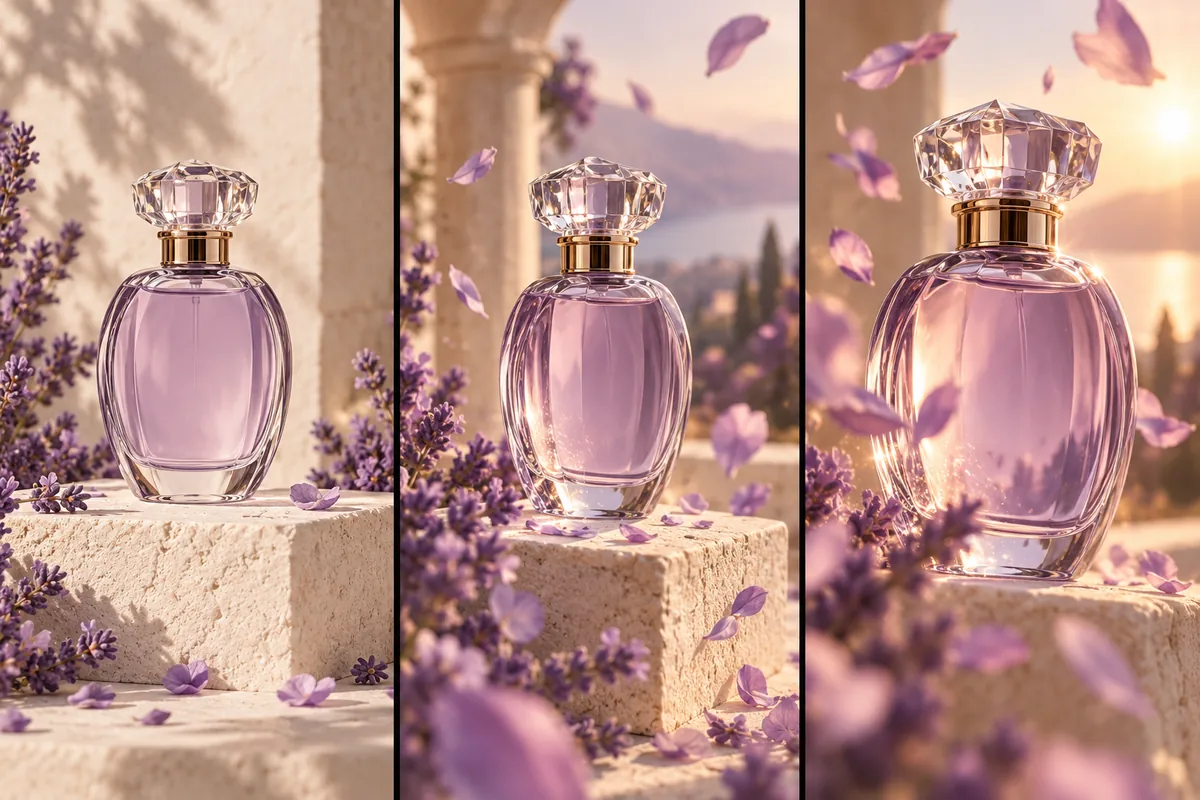
Image to Video AI for product shots, portraits and artwork
Start with the photo you want to develop. Photo to video AI creates moving imagery around a visual reference, giving you a way to explore a shot before filming it.
Product reveals
A gentle camera arc can introduce a bottle, accessory or object. Keep the product still and describe the light and camera movement.
Moving portraits
Try a small head turn or a subtle environmental movement. A clear face and restrained motion make changes easier to evaluate.
Animated illustrations
Give an imagined scene a little life: drifting clouds, moving fabric or a slow camera push. Keep the requested action consistent with the artwork.
Motion direction
Tell Image to Video AI what should move
Your picture already shows the subject and its surroundings. Use the motion prompt to describe what happens next. A stationary product with an orbiting camera is a different shot from a rotating product with a locked camera.
- Camera movement
- “Slowly arc the camera to the right. The bottle remains still.”
- Scene movement
- “Lock the camera. A few petals drift behind the bottle.”
- Subject movement
- “The bottle rotates a quarter turn. Keep the camera fixed.”
Camera-direction concept illustrations.
How to turn an image into a video with AI
Add one or more images
Choose a sharp photo with room around the subject. Related views can clarify the same subject when the selected model supports multiple references.
Write a motion prompt
Describe the action, camera direction and pace. Choose supported video settings and review the estimate before generating.
Review your photo animation
Open the completed clip in Your videos. Inspect the full motion, faces and object details, then download the result or simplify the prompt for another attempt.
Image to Video AI with multiple images
Multiple image references can explain a subject from several angles. They do not automatically become consecutive shots or a slideshow. Tell the model which image supplies the subject and how the others should help.
For a planned opening and ending, switch to first and last frame generation. For video or audio references, use Reference to Video AI. Image to Video AI on this page accepts still images.
Image to Video AI: frequently asked questions
Image to Video AI generates moving imagery guided by a still picture and a motion prompt. It can explore camera movement, subject action or environmental motion around a photo, portrait or illustration.
Yes. This page accepts multiple image references within the model’s limit. Use them to explain the subject or look. To specify the beginning and ending compositions instead, turn on First & last frame.
No. This workflow generates new moving imagery guided by your photos and prompt. It does not arrange your uploaded images on a timeline or preserve every pixel exactly.
Image to Video accepts images. Use Reference to Video for supported video and audio inputs, or Motion Control when you want a character to follow a particular recorded performance.
The generator shows an estimate for your selected model and settings before submission. Check that estimate after changing the resolution or duration; there is no single price for every clip.
Make your next idea visible