
Frames to Video AI
Frames to Video AI: direct the first and last frame
Frames to Video AI connects an opening image with an optional ending image. Use the first and last frame to plan a reveal, a camera transition or a change of pose, then describe the movement that should carry the scene between them.
Create a frame transitionFirst and last frame video: plan the journey
Frames to Video AI gives each image a specific position in the clip. One establishes the opening; the other gives the movement a destination.
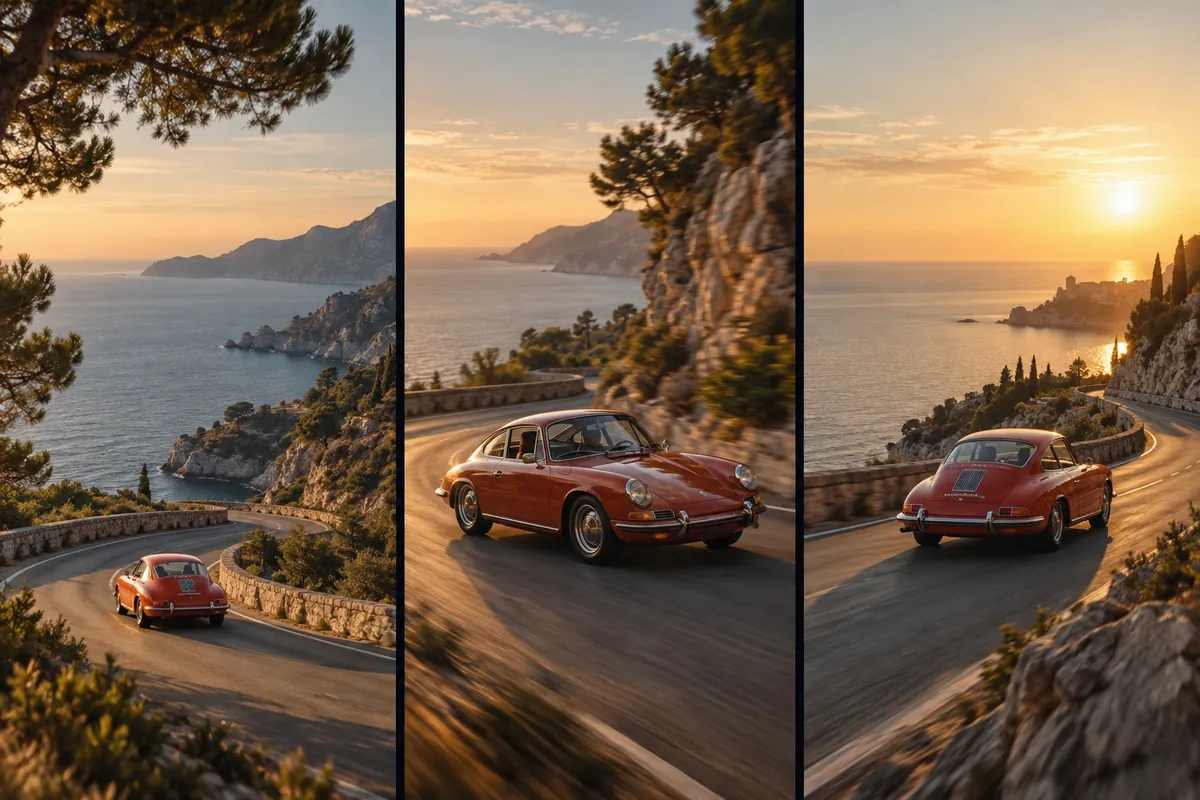
The car follows the coastal curve. The camera travels alongside it.
The model generates the movement between your two compositions.
Storyboard concept; not frames extracted from a generated video.
Two images, one action
Give Frames to Video AI a believable transition
A start and end frame video generator needs more than two attractive images. Choose related subjects, compatible framing and a change that could happen within the selected duration.
- Subject: keep the same vehicle, person or object recognizable.
- Viewpoint: explain how the camera reaches the final angle.
- Timing: leave enough time for the movement you describe.
- Light: keep it continuous, or explicitly ask for a lighting transition.
How to create video from a first and last frame
Set the opening image
Upload the required first frame. Choose the composition that establishes the subject and leaves room for the intended movement.
Add the destination
Upload a second image in the last-frame slot to guide the ending. Describe the action connecting the two views and choose supported settings.
Review the whole transition
Generate with Frames to Video AI, then check the opening, middle and ending. Adjust the image pair or simplify the movement if details drift.
When to use Frames to Video AI
A planned product reveal
Set a close opening composition and a wider closing view. Describe the camera moving back to reveal the scene around the product.
A change of pose or viewpoint
Give the model two related states of the same subject. Keep the change achievable rather than asking for several unrelated actions.
A transition between visual states
Explore a connected change in light or atmosphere. Explain the transformation so the middle has a clear direction.
This workflow has two image slots, not a multi-keyframe timeline. For several appearance references rather than endpoint control, use Image to Video AI. To prepare compatible endpoint artwork, use Image to Image AI.
Frames to Video AI: frequently asked questions
Frames to Video AI generates a clip guided by an opening image and an optional closing image. The prompt describes the movement between those compositions. It is useful when you want to plan where a shot begins and ends.
The first frame is required in this workspace. You can add a last frame to guide the ending, or leave that slot empty and describe the movement from the opening image.
Image references describe appearance and subject details. The first and last frame slots have explicit positions in the clip. Use this page when the opening and closing compositions are part of your plan.
The images guide generation, but exact reproduction and a perfect transition are not guaranteed. Review details and movement, especially when the two images have very different poses or perspectives.
This page has one first-frame slot and one last-frame slot. For several appearance references, use Image to Video. It does not provide a multi-keyframe timeline editor.
Make your next idea visible