
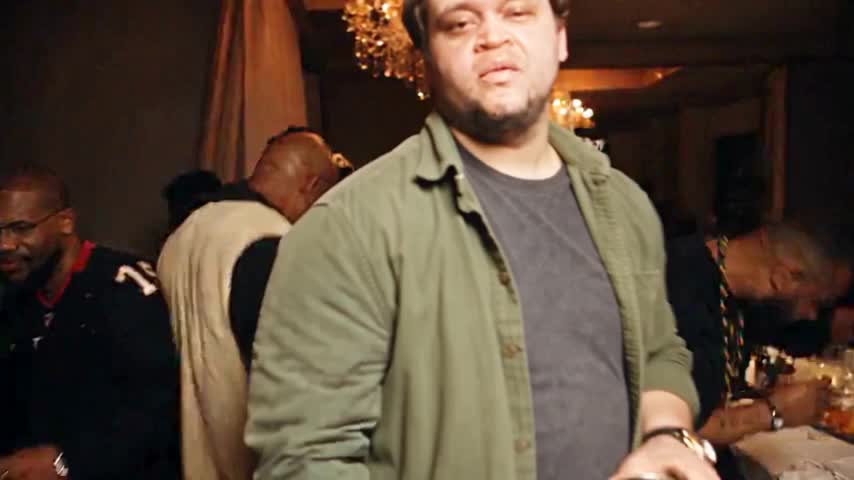
To make a Burning Bridges AI video with your own photo, open the Vhoo party template, replace the example portrait in Character Photo, check the credit cost and select Generate. The template includes an 18-second performance reference, matching audio and instructions for replacing the foreground lead while keeping the appearance from your photo.
If you found the trend by asking about “the Drake AI party video with the silver cup,” look for the crowded room, warm chandeliers, handheld camera and gestures toward the lens. Those details help distinguish the Burning Bridges party scene from other AI dance and rap effects.
What is the Drake Burning Bridges AI trend
The Burning Bridges AI trend puts a new character into a party performance associated with Drake's Burning Bridges video. The lead holds a metal cup, gestures toward the camera, interacts with nearby guests and raises a hand near the face. The LightX guide to the trend describes the same cup, crowd and chandelier setting.
Different generators can produce different versions of the party. Compare a tool's actual preview with the scene you want: the presence of a crowd does not mean that every guest can be replaced, and a similar room does not guarantee the same gestures or soundtrack.
Watch the photo to video example
The Vhoo preview lets you examine an existing output before generating your own. Play the whole clip with sound, watching the face during turns and the hands as they move across the face or touch the cup. A convincing opening frame alone does not establish consistency through the performance.
Which method should you use to make the party video
| Your goal | Suitable workflow | What to check |
|---|---|---|
| Put yourself in a prepared performance | A template with a replaceable character photo | The example scene, supported input and credit cost |
| Follow a specific clip with your own setup | A video editor that accepts a source video and character image | Source duration, target person and audio support |
| Invent a different party with similar energy | Image-to-video generation with scene instructions | Expect different camera movement, gestures and timing |
The Vhoo template suits a single lead replacement in the prepared party sequence. A custom video-editing setup offers more control over the source footage, but requires you to supply the media and explain which person to change. Describing a chandelier party in text is useful for inventing a scene; a reference clip provides much more specific guidance for an existing performance.
How to make the video on Vhoo
1. Open the template and compare the preview
Open the Burning Bridges AI video generator and watch Video result. The published setup uses a landscape performance and one editable character photo. The reference footage and audio are already supplied, so you do not need to download a clip or prepare a separate soundtrack to use this template.
2. Replace the example with your own photo
Under Your input, find Character Photo and select Replace on Image1. Upload one clear portrait and wait for the thumbnail to show the intended person. Changing the photo does not immediately replace the saved video preview; your new performance appears after generation.
For the party template, choose a photo with a visible face, hairstyle and upper body. A waist-up image supplies useful clothing information. A tight selfie supplies less outfit detail, while a group photo can make the intended character ambiguous. Use even lighting and avoid hands, sunglasses or heavy shadows covering important facial features.
3. Review the generation cost
The Vhoo template displayed 445 credits on its Generate button when checked on October 12, 2026. Use the live quote before submitting because pricing and saved settings can change. The Vhoo pricing page explains the available credit options; the length of the finished clip is separate from the time needed to generate it.
4. Generate and inspect the performance
Select Generate after confirming the photo and cost. When the result is ready, review the opening gestures, the turn toward the guests and the closing hand movements. Check that the same person remains in the lead, the cup stays in contact with the hand and the soundtrack fits the movement. Use Download result to save a take you are satisfied with.
What happens in the 18-second reference
The Vhoo reference follows one continuous party performance. These approximate ranges describe the supplied sequence and offer useful checkpoints when reviewing a result; they are not promised frame-accurate output timings.
| Reference time | Performance checkpoint |
|---|---|
| 0–3 seconds | The lead faces the camera, holds the metal cup and gestures toward the lens. |
| 3–8 seconds | The lead sways, raises the elbows and brings a hand toward the chest or neck. |
| 8–12 seconds | The lead turns toward nearby guests and exchanges gestures with the crowd. |
| 12–14 seconds | The lead turns back toward the camera and reaches forward. |
| 14–18 seconds | The cup and an open hand move near the face, partly covering and revealing it. |
The reference timeline helps you find identity problems that a thumbnail can hide. Pay particular attention to the sideways turn and the final hand occlusion: both change how much of the face the model can show, so a recognizable face at the beginning may still drift later.
How to keep your own clothes instead of the blue jacket
The blue jacket and light hat in Vhoo's reference identify the source performer to replace. The uploaded portrait supplies the replacement person's appearance. Choose a photo that shows the clothes you want, and keep instructions about identifying the source performer separate from instructions about the replacement wardrobe.
For example, “replace the foreground person in the blue jacket” identifies a target. “Dress the new person in a blue jacket” requests a costume change. Vhoo's prepared instructions use the jacket as a locator and ask the model to preserve the uploaded person's face, hair, body proportions and clothing.
A Burning Bridges AI prompt for a custom video editor
For a custom setup, connect the reference footage, a character portrait and the matching audio segment to a video editor that supports those inputs. This English prompt expresses the intended edit without requiring a particular tool's attachment syntax:
In the supplied 18-second party clip, recast the foreground performer holding the metal cup and wearing the blue jacket and light hat as the person in the portrait. Use the portrait for the new performer's face, hairstyle, build and clothing. Follow the source gestures, framing, camera movement and interactions with the surrounding guests. Keep the other people distinct. Use the supplied audio segment for the music, vocals and timing. Maintain a recognizable face through turns and hand occlusion, with natural hands and clear clothing detail.
The custom prompt assumes the blue-jacket reference used in this tutorial. If your clip shows a different lead, change that identifying description. Attach the actual media before running: writing an attachment name in a prompt does not upload a photo, video or audio file. The public Vhoo template already contains its instructions, so you do not paste this prompt into that page.
Does the video keep the original audio
The Vhoo template supplies the matching audio separately from the silent source video and instructs the model to retain the music, vocals and rhythm. An audio reference guides generation; it does not establish that the output contains an unchanged copy of the recording. Listen to the completed clip for altered vocals, missing beats or a timing shift.
In a custom workflow, a silent motion reference cannot supply the original song by itself. Use the audio from the same segment when the video editor supports an audio input. If exact recording preservation is essential, inspect the exported soundtrack instead of assuming that an instruction to keep the sound guarantees it.
Fix common problems before another generation
| Problem in the output | What to check or change |
|---|---|
| The face becomes less recognizable | Use a sharper, evenly lit portrait and inspect the turn and hand-covering moments. |
| The replacement inherits the source outfit | Show the desired clothes in the portrait; in a custom prompt, distinguish target identification from wardrobe instructions. |
| A background guest receives the lead's face | Use a single-person portrait. In a custom setup, identify only the foreground performer holding the cup. |
| The clip invents different gestures | Confirm that the tool follows the intended video reference, rather than relying only on a description of a party. |
| The song is missing or out of sync | Play the export with sound and check that the supplied audio corresponds to the same source segment. |
| The result is blurry | Start with the original photo rather than a small screenshot, and compare detail during motion with detail in a still frame. |
Change one input or instruction at a time when troubleshooting a custom edit. Replacing the portrait, rewriting the scene and changing the source together makes it difficult to tell which change improved the result. The Vhoo public template exposes the character photo, so trying a clearer portrait is the main adjustment available there.
Questions before you post
Can I make this without CapCut
The Vhoo party template runs in a browser and requires no CapCut project. A separate editor is optional for adding captions, trimming the result or placing the landscape clip inside a vertical composition.
Is the Burning Bridges AI effect free
Generating the Vhoo effect uses credits, with the cost displayed before submission. You can inspect the existing preview before starting a run. Check the current quote rather than assuming that a free signup includes enough credits for a video.
Can I replace the whole group
The published Vhoo setup accepts one character photo for the foreground lead. The guests remain part of the reference-guided background. Replacing several people requires a different setup with separate identity references and clear role assignments.
Can I post the landscape clip vertically
The Vhoo example is 854 × 480 pixels, close to 16:9. For a vertical post, either retain the full frame within a taller layout or crop while checking the lead's face, raised hand and cup. A centered crop can remove important gestures when the performer turns toward the crowd.
To create your own party performance, open the Burning Bridges template, replace the example portrait and review the live credit cost. If you want a different performance setting, the Bulin 47 AI video tutorial covers a shorter nighttime freestyle scene.