

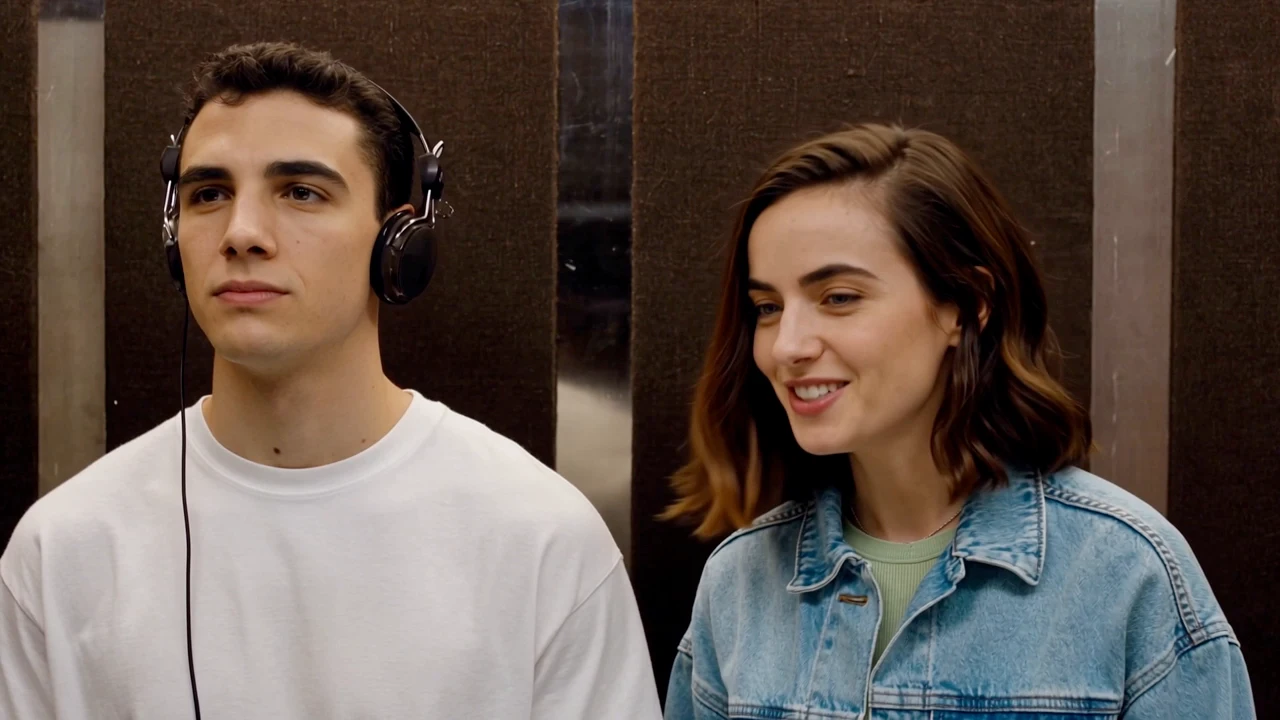
To make an I Love the Smiths AI video, upload one photo for the person wearing headphones and another for the person who starts the conversation. The prepared Vhoo elevator template supplies the scene and original soundtrack. You choose the cast, generate the video, then check the conversation, the departure and the final reaction before posting.
The scene comes from (500) Days of Summer. This guide uses Vhoo's approximately 24-second, 720p landscape version, with both people replaced from separate photos. You can see the actual inputs and finished example below.
Make an I Love the Smiths AI Video Step by Step
1. Pick a separate photo for each person
Choose portraits with clear faces, visible hair and even lighting. Include the shoulders and upper body if you want a particular shirt or jacket in the result. A close face crop gives the model less information about clothing.
You do not need to photograph anyone in an elevator or wearing headphones. If you start with a photo of the two people together, make two separate crops and keep the other person's face out of each image.
2. Match each photo to its role
Open the template and replace both example pictures under Your input. Use the labels to decide who does what:
| Input label | Person to upload | Role in the finished video |
|---|---|---|
| Left · Headphones | The listener | Wears the black headphones, responds and stays for the closing reaction |
| Right · Starts the conversation | The person who notices the music | Begins the exchange and later leaves the elevator |
Left and right describe the opening positions. Either person can play either role; swapping the two photos reverses the casting. Check both thumbnails before starting, especially if the two original files have similar names.
3. Generate with the prepared scene
Sign in, review the 1,200 Vhoo credits shown on the button and select Generate. This template has a fixed price per generation. You do not need to upload the movie clip, add an audio file or paste a prompt.
Changing an input photo does not immediately change the example video. Wait for your new result, then review that result rather than the saved demonstration. The approximately 24-second length describes the video you receive, not how long generation takes.
4. Review the moving result and download
Watch with sound from beginning to end. Look at the left person's face as the headphones move, the right person's appearance while speaking and leaving, and the last expression after the exit. Clothing should also remain associated with the correct person through the cuts.
Use Download result when you have checked the full sequence. Keep that landscape download as your source if you plan to make several versions with different captions or framing.
Compare the I Love the Smiths Photos and Finished Video
In this published example, the left reference wears a white T-shirt, and the right reference wears a denim jacket. Those give you visible details to compare with the finished elevator scene.
Notice that the left input has no headphones, while the video includes the black pair from the scene. The right character carries the denim-jacket appearance into the conversation and departure. Play through the final seconds to see the listener remain in the elevator with the headphones around the neck and a slight opening of the mouth.
Use the same comparison for your result: identify a few recognizable features in each portrait, then follow them through the video. A convincing opening frame is only the beginning of that check.
Keep the I Love the Smiths Audio and Complete Ending
The finished template result already includes the original reference dialogue and music. Your photos replace the visible characters; they do not replace the voices with recordings of you and your friend.
When preparing a post, start with the downloaded video's sound enabled. Adding another copy of the scene audio can create an echo, and adding a loud music track can cover the conversation. Listen to the final edit after adding captions or changing its duration.
Keep watching after the right character leaves. The listener's brief pause and final expression complete the moment. If you trim the clip for pacing, leave room for that reaction rather than ending at the last spoken line or the moment of departure.
Frame Your I Love the Smiths Video for TikTok
The output is 16:9 landscape. To prepare a vertical version, create a 9:16 canvas in your video editor and fit the entire clip inside it first. Use a plain background or a blurred copy behind it, and place your caption in the available space above or below the scene.
A single centered crop can hide a person at the start or cut off the right character during the exit. If you prefer a closer vertical crop, adjust it shot by shot and review the moving boundaries. Keep the headphones, both speaking faces and the final reaction visible where they matter.
Preview the export on your phone. Check that captions are readable without covering the mouth, and that the ending still has the pause you intended.
An Optional I Love the Smiths AI Prompt
The prepared template needs no additional prompt. If you are making a custom edit in a tool that accepts a reference video and two character photos, the following describes the visual replacement:
Replace the person who starts on the left wearing headphones with the person in the first reference photo. Replace the person who starts on the right and begins the conversation with the person in the second reference photo. Use each photo's face, hairstyle and clothing. Keep the left character's black headphones and their original color. Follow the reference video's elevator setting, camera cuts, gestures, expressions, mouth movements and timing. Include the right character's exit and the left character's final slight mouth-opening reaction.
Attach the video and both photos as actual inputs, then map the first and second photos to your editor's reference order. This is a visual editing starting point; the template above already handles the finished soundtrack.
Fix Common I Love the Smiths AI Video Problems
| What you notice | What to check or change |
|---|---|
| The wrong person wears the headphones | Reverse the two photo assignments before generating again. |
| A face changes during a turn | Try a sharper portrait with visible eyes, natural lighting and less obstruction. |
| The outfit looks different | Use a photo showing the intended shirt or jacket, rather than only the face. |
| The headphones change shape or color | Inspect the headphone movement in the result. For a custom edit, explicitly retain the reference pair and its black color. |
| Sound echoes after editing | Check whether the exported video and an added audio track are both playing the same dialogue. |
| The right character disappears too early | Compare with the landscape source to see whether the vertical crop hides the exit. |
| The scene ends abruptly | Check whether your trim removed the listener's final pause and expression. |
For another attempt, change the input most closely related to the problem. If one face is weak but the other looks right, replacing only the weaker portrait makes the next result easier to assess.
Choose your listener and speaker in the I Love the Smiths AI video template. For a different two-person story, the AI Zombie Trend tutorial explains a cabin encounter that transitions into a sunset memory.