
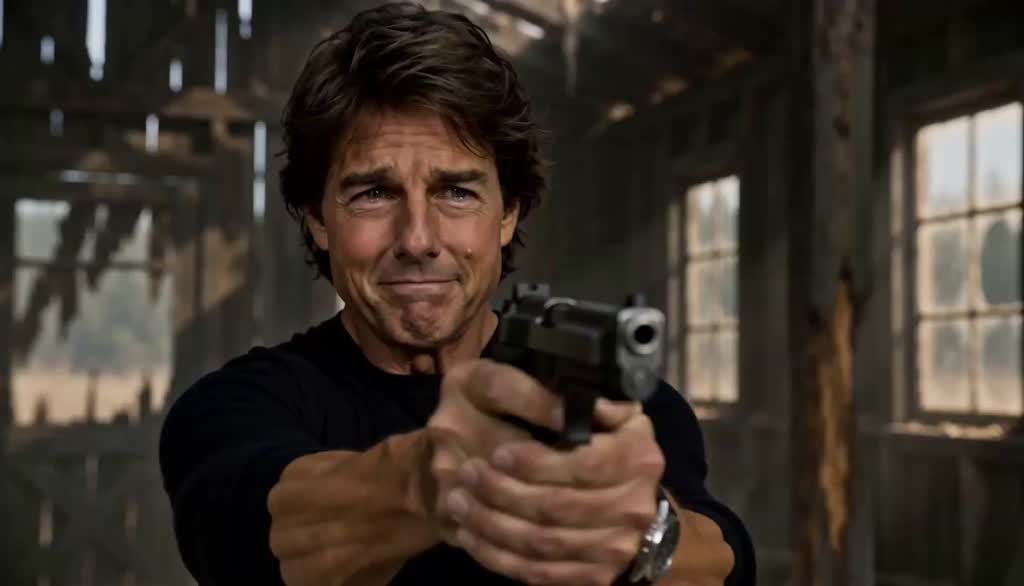
To make an AI zombie video, start with two subjects: two people, or a person and their pet. Prepare a normal photo of each plus an infected version of the second subject. Build a tense encounter and a warm reunion, then cut between the scenes during the approach.
This AI zombie trend tutorial covers the work that makes the edit convincing: keeping normal and infected references consistent, describing a fast approach, and matching the cut into the reunion. Follow the template steps for a prepared setup, or use the scene prompts below when building your own version.
Understand the encounter and reunion sequence
Open the AI zombie trend template and play its example. The story begins in an abandoned cabin: A confronts an infected loved one, B, then lowers the gun and opens their arms. B lunges toward A. The cut reveals a sunset lawn, where the same movement becomes an embrace between two healthy people.
The zombie transformation establishes the threat. The change to a familiar, affectionate moment gives the ending its emotional payoff. The couple hug needs to feel like one continuous movement across two locations.
The supplied example uses two video generators and a final Video join step. The configured scene lengths are 11 seconds and 5 seconds. The actual combined example is approximately 16.81 seconds at 1344 × 768; a fresh generation can have different timing.
Prepare three matching reference images
The most important preparation is making normal B and zombie B look like the same person. The template has three separate image slots:
| Slot label | Reference to prepare | What to check |
|---|---|---|
| character A | The first person or pet owner | A sharp face, visible hairstyle, and clear clothing |
| character B | The second person or pet in normal appearance | One subject with its face and distinguishing features visible |
| zombie B | An infected version of character B | The same face, hair or fur markings, and proportions |
Choose photos with even lighting and enough detail around the eyes. Avoid group shots and strong beauty filters. For a person, a waist-up reference helps establish clothing and proportions. For a pet, show its ears, face, and body without a person blocking them. Use images you have permission to use.
Make the zombie reference from B
Use the Vhoo image generator with B's normal photo as a reference, or prepare the variation in your preferred image editor. Save the result before returning to the template. This image preparation is a separate step and may use additional credits.
Try this prompt for the infected portrait:
Edit the person in the reference into a cinematic fictional zombie. Preserve their facial structure, hairstyle, clothing, and body proportions. Add gray, desaturated skin, cloudy eyes, subtle dry skin texture, and a tense expression. Keep the face clearly recognizable and fully visible. Use restrained horror styling without open wounds or gore.
Compare the two versions side by side. If the nose, jaw, hairstyle, or outfit changes substantially, fix the reference first. A different-looking zombie image gives the video model conflicting instructions about who B is.
Prepare a pet version
For an owner-and-pet video, put the owner in character A, the normal pet in character B, and the infected pet in zombie B. These two B references must show the same animal.
Use this image prompt for a cat or dog:
Edit this pet into a fictional cinematic zombie while preserving its species, breed, muzzle, ear shape, fur pattern, body size, and natural animal anatomy. Add cloudy eyes, slightly desaturated fur, and a subdued, eerie expression. Keep the animal clearly recognizable. Retain the original pose and complete body. Use subtle horror styling without exposed injuries.
Check distinctive markings first: a white paw, a patch around one eye, or a striped tail is a useful identity cue. Keep these details in both references so the reunion shows the same pet returning to its normal appearance.
Upload your references and generate
1 Replace all three images
Sign in on the template page. Click each image to replace it, matching the slot labels in the table above. Check every thumbnail after uploading.
Replacing character B does not also replace zombie B. Update both with your intended partner. The public template supplies the scene prompts, audio references, and generation settings; its form is for replacing the input images.
2 Check the cost and generate once
Read the credit amount beside Generate before submitting. On October 4, 2026, the source canvas showed 190 credits for its configured run. Treat the amount currently displayed on your template page as the one to check before starting.
Select Generate once and keep the page open through the final join. Review progress before submitting another run so you do not pay for duplicate attempts. The 11-second setting controls the requested clip length; processing takes additional time.
3 Review all three results
Use the result preview's step controls to inspect the indoor clip, outdoor clip, and joined video. Download the final joined result when it is ready.
Check these moments before posting:
- Cabin close-ups: A and B should remain recognizable; B should retain the infected look.
- The approach: B should move toward A without changing identity or switching direction.
- The location cut: the motion should carry into the grass embrace.
- The ending: inspect hands, cheek contact, and both faces while they move.
The human example demonstrates the story and lighting change, but its infected appearance becomes less consistent during the fast approach. Judge your result frame by frame near the cut rather than relying on the opening thumbnail. For pets, also inspect legs, paws, ears, and the animal's size relative to the owner.
Build your own version with two scene prompts
Use this section when configuring your own video generation rather than the fixed template form. The prompts are editable starting points, not a promise of exact shot timing. Attach A and zombie B to the first scene; attach A and normal B to the second. Map those names to the corresponding references in your tool.
The two timed prompts below describe a human embrace. For an owner-and-pet version, use the animal movement instructions immediately afterward.
Scene 1 The cabin encounter
Set the first clip to 11 seconds. Use mostly frontal shots with one character visible at a time, then a brief side view at the end.
Abandoned wooden cabin after an apocalypse, cold window light, restrained cinematic emotion. A is healthy. B is the same loved one shown in the infected reference, with cloudy eyes, gray skin, and a stiff posture throughout this scene.
0–2 seconds: frontal close-up of A holding a gun toward B offscreen, wet eyes and trembling lips.
2–4 seconds: frontal close-up of B, head slightly tilted, infected features clearly visible.
4–6 seconds: frontal facial close-up of A as a tear falls and their expression tightens.
6–9 seconds: frontal medium shot of A slowly lowering the gun, separating their hands, and opening their arms.
9–10.7 seconds: A closes their eyes; cut to B suddenly rushing forward.
10.7–11 seconds: side view with A on the left and B on the right. B lunges from right to left toward A, with natural motion blur. End immediately before contact. Keep the cabin setting and each character's appearance consistent. No gunfire, text, or split screen.
Scene 2 The fast embrace on the grass
Set the second clip to 5 seconds. Describe its opening pose directly so it works as an independent generation.
Sunset grass field, warm backlight. A is on the left and B is on the right. Both have healthy appearances matching their normal references.
0–0.5 seconds: side medium shot. In the first frame, B is already leaning into A's chest, arms around A's shoulders. B's right-to-left momentum immediately carries A backward to the left. They fall into the grass together within half a second. The camera follows downward quickly, at normal speed.
0.5–1.3 seconds: low side close-up. A lies toward the lower left; B leans over A from the upper right. Their bodies settle from the fall, still holding each other.
1.3–2.5 seconds: close-up of B looking down at A, breathing easing into a warm smile. A's hand enters from the lower left and rests against B's cheek.
2.5–3.5 seconds: close-up of the hand and cheek. A's thumb gently strokes B's face as B leans into the palm.
3.5–5 seconds: reverse close-up of A looking toward B at the upper right and smiling in response. Keep all cameras on the same side of the action. Realistic skin, natural weight, subtle breathing, no text or split screen.
Adapt the reunion for a pet
For custom pet scenes, keep the owner on the left and the animal approaching from the right. Use movement appropriate to its size: a cat or small dog can leap into the owner's arms; a large dog can run up while the owner kneels to greet it. Replace the human shoulder embrace and cheek-touch instructions with these actions:
The owner kneels at the left with open arms. The pet approaches quickly from the right using natural animal movement. Cut to warm sunset grass while it is still approaching. The healthy pet reaches the owner's hands, and the owner draws it into a close embrace. Cut to the pet's recognizable face, then a hand gently stroking its head, and finish on the owner's relieved expression. Preserve the pet's markings, proportions, paws, and animal posture.
Use the same approach in both scenes. If a large dog runs at ground level in the first clip, start the outdoor clip at that same height rather than placing it suddenly in someone's arms.
Make the zombie embrace transition feel continuous
For this AI zombie trend edit, the cut works best during the rush. Match three things: B's direction, the pair's screen positions, and their distance from contact.
- Scrub to the final usable cabin frame. Choose a moment when B is moving toward A, before their bodies overlap awkwardly.
- Find an outdoor frame with a similar forward lean and similar distance between the characters. Trim any standing or waiting before it.
- Put the clips directly next to each other. Start with a hard cut so the sudden location change lands during the action.
- Play roughly half a second on each side of the join. If the action seems to restart, trim the repeated movement from one clip.
- Listen across the join. If the two audio tracks restart or jump in level, mute them and place one continuous soundtrack across the finished edit.
Choose the cut from your generated motion. An exact timestamp copied from another video will not necessarily align with your version. Use music available for your intended post; cleaning an audio file does not change its usage rights.
Fix identity motion and timing problems
| Problem | Practical fix |
|---|---|
| B looks like two different people | Recreate zombie B from the normal B photo and keep the hair, face shape, and outfit consistent. |
| The pet changes breed or fur pattern | Make both B references from the same animal photo and retain distinctive markings. |
| The animal moves like a person | In a custom prompt, specify natural animal posture, paws, and an approach suited to its size. |
| B becomes healthy before leaving the cabin | Strengthen the infected reference. In a custom prompt, keep the gray skin and cloudy eyes for the entire first clip. |
| The outdoor clip begins with waiting | Specify an opening frame with B already at A's chest. Trim any idle frames before the embrace. |
| The fall becomes slow motion | Ask for a quick fall at normal speed, then keep the calmer face shots for after landing. |
| The characters swap sides | Use A left and B right in both side shots. Keep the camera on one side of their movement. |
| A face or hand distorts | Review the full clip, use a clearer reference, and trim a brief defect if the remaining action still works. |
| The final file is longer than expected | Measure the downloaded clip and trim it in an editor; duration settings are not a guarantee of exact file length. |
For a vertical TikTok post, place the landscape video inside a 9:16 canvas. Check the entire embrace before cropping: both characters need room at opposite sides of the frame.
Check the finished edit before posting
Play the exported file once with sound and once muted. With sound, listen for an abrupt restart at the location cut. Muted playback helps you judge whether the movement itself connects.
Check the last infected frame and first healthy frame side by side. The subject should keep a similar position, size, and direction. For a pet, compare its ears, muzzle, and distinctive markings; for a person, compare the face and hairstyle.
Finally, inspect the whole vertical composition with captions in place. Keep faces and the moment of contact clear of text. Download and review this final export, since trimming, reframing, and replacing audio can change an edit that looked correct in the generator.