

Wassup in a Minute AI Video Generator
Create a Wassup in a Minute AI dance video from three photos. Put your trio on the hillside with music included.
Turn three photos into a Wassup in a Minute AI dance video starring your own trio. Your characters move together on a misty green hillside, appear in a playful close-up, and walk toward the camera with the music already included. Choose yourself and two friends, bring together your siblings, or give three teammates a shared introduction. Add one photo for each person, decide who gets the featured moment, and use the preview above to picture your cast in the scene.
What Is the Wassup in a Minute AI Dance?
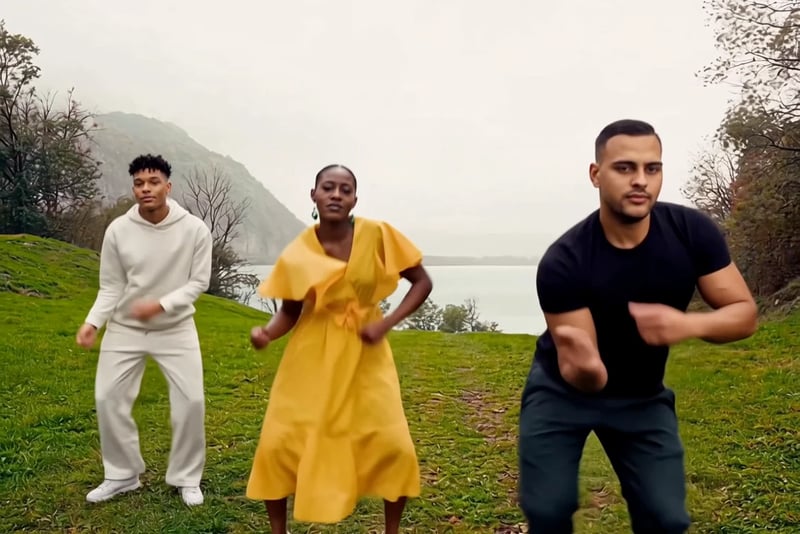
The Wassup dance AI trend places three characters in an outdoor routine above a lake, with green grass, trees, and mountains behind them. You may also see this hillside scene called the Swiss Side Quest dance. The setting gives the clip a recognizable look, while changing the people gives each version its own personality.
The sequence moves through several distinct moments. Group shots show the dancers swaying and gesturing together. A closer view brings one character forward, giving their face and expression more attention. The trio then comes toward the camera, returning the focus to the group. These changes make the video feel like a short shared performance.
Vhoo's template follows this scene in a clip of about 15 seconds. Watch the example to see how the wide views and close-up work together, and choose a cast whose faces and outfits will be easy to recognize throughout.
Choose Your Three Wassup Dance Characters
Each input has a specific place in the group. Arrange your photos before generating, especially if you want one person to receive the close-up.
| Input | Role in the video | Example character |
|---|---|---|
| Person 1 | Dancer on the left | White hoodie |
| Person 2 | Middle dancer, including the close-up | Yellow dress |
| Person 3 | Dancer on the right, prominent in the opening | Black T-shirt |
Choose Person 2 for the friend you want to feature most clearly in the closer shot. Person 3 has a noticeable presence in the opening, while Person 1 completes the group on the left. These positions describe this template's example, so use this guide when arranging your uploads.
The example's white, yellow, and black outfits make the three roles easy to follow. You can use a similar contrast with your own photos, or choose a coordinated group look with clearly different clothing details.
How to Make a Wassup in a Minute AI Video
- Watch the example and choose your cast. Play the preview through once to see the group positions and the featured close-up. Decide which person belongs in each slot before uploading. On the preview, turn on sound to hear the included music.
- Replace all three photos. In Your input, select Replace for Person 1, Person 2, and Person 3. Add a separate image for each person. Check the three thumbnails afterward to confirm that every example image has been replaced and the order matches your intended cast.
- Generate your dance. Sign in to your Vhoo account and select Generate. The template supplies the prepared dance reference and soundtrack, so the photos are the main choices you need to make. Let the generation finish before reviewing the complete result.
- Preview and download. Watch the group shots and the close-up, checking that each person occupies the intended role. Listen to the sound, then select Download to save your video. If you want another arrangement, change the relevant photo inputs before generating a new version.
What Changes in Your Wassup Dance Video?
Your photos provide the characters for the dance. Their faces, hair, and visible clothing give the generator the appearance information to work from. Choosing a different outfit photo can therefore change the look of your cast as well as the people appearing in the scene.
The prepared video reference supplies the hillside setting, dance movement, group arrangement, and camera sequence. The background music is added to the finished clip. You can concentrate on casting your trio without gathering the reference footage or assembling the soundtrack yourself.
Think of the example as a guide to the scene you are making. Replacing the people is the main creative choice available in this template. For a coordinated result, choose the three photos together and consider how their colors and silhouettes will look side by side.
Photo Tips for a Clear Three-Person Dance
Use one clearly visible person in each photo. A sharp image in even light gives the generator useful detail around the eyes, mouth, hair, and face shape. Choose a front-facing or gently angled view with the face large enough to see comfortably. Avoid using a distant figure from a crowded photograph.
Match the crop to what you want the video to show. A portrait gives useful facial information; a wider photo also supplies clothing and body proportions. If a jacket, dress, or recognizable outfit is part of your idea, include it in the image. Leave some space around the head and avoid cropping through important clothing details.
Compare the three photos before uploading. Similar image clarity helps you judge the set, while different clothing colors make the dancers easier to follow. The center character appears closer to the camera, so give Person 2 a particularly clear facial reference.
For a first version, choose images with simple poses and unobstructed faces. Hands covering the cheeks, strong shadows, sunglasses, and heavy filters can hide details you want viewers to recognize.
Wassup Dance Ideas for Your Trio
A Friend-Group Dance
Cast yourself and two friends in a shared clip for your group chat. Put the friend you want to spotlight in the middle slot, then choose contrasting outfits for the two side dancers. Photos from different occasions can still give the trio a fun mix of personalities.
A Sibling or Family Trio
Use three individual portraits for a playful family edit. You might choose siblings in their favorite clothes or three relatives with very different styles. Arrange the roles around who would enjoy the closer camera moment, and let the group shots bring everyone into the same scene.
A Three-Person Team Introduction
Give three teammates a relaxed introduction for a shared project or social post. Choose photos with a common clothing theme, such as similar jackets, while keeping each person visually distinct. Add names or a short introduction when preparing the downloaded clip for your post.
Wassup in a Minute AI Questions
Do we need to record ourselves dancing?
No. Start with still photos of your three people. The prepared reference supplies the movement, so you do not need to learn the routine, film a performance, or visit a similar outdoor location before using the template.
Do all three people need to be in the same photo?
No. Use one separate photo for each input. The template brings the three characters into the shared scene. This is useful when your friends live in different places or you have good individual portraits but no suitable group picture.
Do I need CapCut or a written prompt?
No. Generate the dance directly in Vhoo using the three photo inputs. The scene and replacement instructions are already configured. An editor is optional afterward if you want to add captions, names, or other details to your finished post.
Is the background music included?
Yes. The finished video includes the prepared background music. The page preview may start muted; use its sound control to listen. You do not need to upload a separate audio file to make the version shown here.
How can I share the dance in a vertical post?
Download the result and place it in your TikTok, Reel, or other vertical edit. The example has a landscape composition. Fit the full scene inside the vertical frame so both side dancers remain visible, and check the close-up before exporting.
More Photo-to-Video Templates
Try the Hotel Lobby AI Video Generator for a two-person performance in an orange studio. The I Love the Smiths AI Video Generator puts two characters into an elevator scene, while the AI Zombie Trend template offers a short story built around a dramatic encounter and an embrace.