

Training Season AI Video Generator
Make a Training Season AI singing video from one photo. Replace the concert lead with your face and outfit, keep the original soundtrack, and download your clip.
Make a Training Season AI video with yourself as the concert's lead singer. Upload one photo, keep the prepared performance, and turn a familiar portrait into a vertical stage clip with the original soundtrack. Your face, hair and outfit guide the replacement while the microphone, orchestra, audience and warm concert lighting provide the setting.
Watch the example above to see the performance this template follows. When you are ready, replace Your Singer Photo, check the credit amount beside Generate, and make your own version. The reference footage and audio are already included, so you can start with a single picture.
What is the Training Season AI singing template?
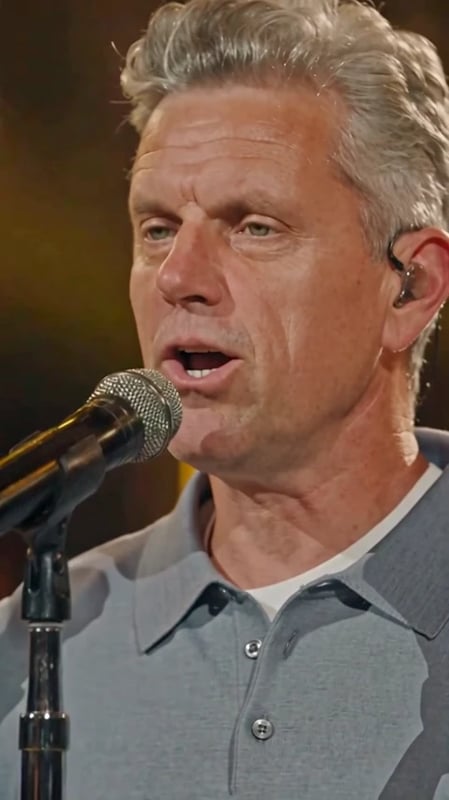
This Training Season AI template recreates the concert-singing version of the effect: one person performs at a standing microphone, with an orchestra and audience surrounding the stage. The clip moves between expressive close-ups and wider views of the performance. Your photo supplies the new lead singer's appearance and clothing.
The reference TikTok shows this microphone-and-orchestra scene and links to a CapCut template titled Training Season. Vhoo provides its own prepared photo-to-video workflow for this kind of stage replacement. Preview the example to choose the concert version you want: the same song is also used in dancing, outfit-change and train videos.
How to make a Training Season AI video from one photo
- Preview the performance. Play the example with sound. Look at the close-up, the full outfit and the wide stage shot so you know what your photo will be used for.
- Upload your singer photo. Sign in when prompted, then choose Replace on the picture under Your Singer Photo. Use one clear image of the person you want to appear. Check the thumbnail before continuing.
- Generate your version. Review the current credit cost beside Generate and submit once. The template supplies the performance instructions, video reference and soundtrack arrangement.
- Watch and download. Open the finished result, play the whole clip, and use Download result to save it. Check the face, clothes and singing movements before sharing.
You do not need to record a performance or upload a separate music file. The Training Season AI workflow brings those references together for you. Keep the page open while it is processing so you can follow its status and review the result when it is ready.
Choose a photo that carries your face and outfit
A clear, single-person photo gives the template useful information about both identity and clothing. Use a naturally lit image with visible eyes, an unobstructed face and enough detail to recognize the hairstyle. A full-body or three-quarter portrait also shows the trousers, shoes and proportions needed in wider shots.
For your first Training Season AI result, choose a photo in the outfit you actually want on stage. A sharp portrait with a simple background makes it easier to judge the person you are uploading. Avoid a tiny face in a large group, a hand covering the mouth, or a strongly blurred screenshot. If your face is only a few pixels wide, choose a clearer original instead of enlarging the screenshot.
The upload accepts JPG, PNG and WebP images. One person in one image is enough for this template. A standing portrait is useful even though the clip begins close to the face: the camera also shows the performer from farther away.
Your appearance, the prepared concert performance
The Training Season AI video generator uses your photo to guide the singer's face, hair, body appearance and complete outfit. The prepared performance guides the expressions, gestures, stage position and camera cuts. The other musicians and audience remain part of the concert scene.
The displayed example uses a grey-haired man in a grey-blue polo and brown trousers. Watch how those visible features carry from the opening face shot into the full-body performance. For your version, choose the image for the look you want viewers to recognize; the photo is also your outfit reference.
Wide shots matter as much as close-ups. This template includes instructions to preserve the performer's direction relative to the camera, along with the microphone's position in front of the body. After generation, watch through the change in camera distance to check that the result reads as one continuous performance.
Training Season AI with the original soundtrack
The finished clip includes the supplied performance soundtrack. Vhoo combines that audio with the generated video, so the final result has the song without requiring you to add it manually in a separate editor. The photo changes who appears on stage; it does not record or clone your own singing voice.
The current Training Season AI example is approximately 14.7 seconds, vertical, at 480 × 854 and 24 frames per second. Those are the measured properties of the displayed example. The soundtrack follows the finished clip's length, and the export is an MP4 you can review before posting.
Listen with sound enabled when you check a new result. Pay attention to the mouth during the close-up and the timing of gestures around the cuts. A familiar soundtrack helps make the performance recognizable, while the video preview lets you judge your particular generation.
Ideas for your Training Season AI stage clip
Put yourself at the microphone. Start with a portrait you already like and turn it into a short concert moment. It works as a playful profile post or a performance-themed video to share with friends, without filming a stage scene yourself.
Give a friend a solo. With their permission, use a clear photo in a recognizable outfit. The concert setting supplies the surprise; a familiar face and everyday clothes make the joke easy to understand. Keep one person in the input image so the intended singer is clear.
Try a different stage look. Choose another photo of yourself wearing a different outfit and generate a separate version. Compare the complete looks in the wide shot, then select the clip you prefer. If you want to prepare a new portrait first, use the Vhoo image editor and bring the finished picture back here.
Training Season AI questions
Do I need a CapCut template or a prompt?
No. You can use this browser template directly. Its performance reference and replacement instructions are already prepared. Upload your photo, review the credit cost and select Generate; there is no prompt field to configure for this version.
Does Training Season AI change just the face?
This template is set up to replace the lead's appearance and outfit, rather than only placing a face over the original performer. Include the clothing you want in your photo. The performance, stage and supporting musicians come from the supplied reference.
Does the video use my voice?
It uses the supplied concert soundtrack. Your photo controls the visual character, and no voice recording is requested. You get a video of the person appearing to perform that recording.
Is the Training Season AI generator free?
Generation uses credits. The Generate button shows the current amount before you submit, and Vhoo pricing explains the available credit options. Sign in to upload your image and run the template. Each new generation is a separate run.
Will every face and gesture match perfectly?
Results can vary. Use a clear photo and review the whole video, including the mouth, hands and distant shot. If a result misses the person's appearance, try a sharper, more clearly framed photo before generating another version.
Can I post the result on TikTok or Reels?
Download the vertical MP4 and import it into your post. Check how the app crops the preview and positions captions around the singer. Use photos you have permission to use, and check the posting platform's music permissions for your intended use of the soundtrack.
Make your concert version, or try another template
Return to Your Singer Photo above to create your Training Season AI clip. For a two-person musical performance, try the Hotel Lobby AI video generator. For a two-character cinematic story, open the AI Zombie Trend template. You can also browse Vhoo's video templates to choose another prepared scene before uploading your photos.