
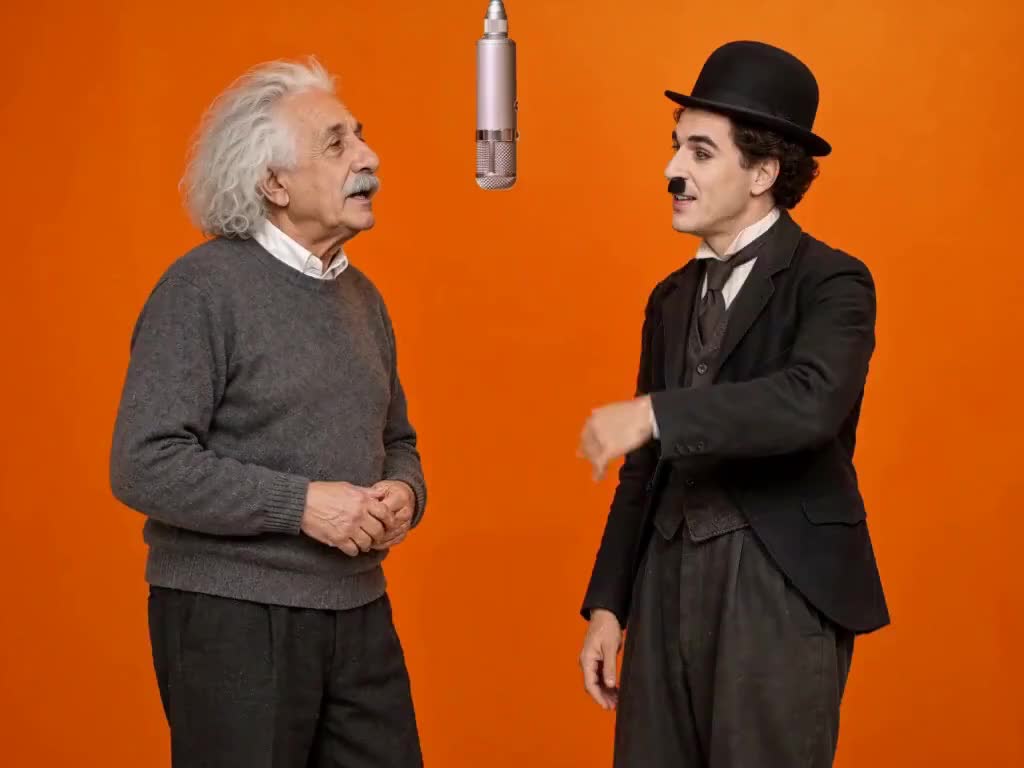
Want to make the TikTok Hotel Lobby trend edit in 2026? Start with two character photos and a template that already contains the performance video, audio, and replacement instructions. Replace the two photos, generate your version, then frame the result for your TikTok post.
This TikTok Hotel Lobby trend AI video tutorial walks through Vhoo's actual template, with its input images and a playable result below. The current setup produces a 15-second, 4:3 video at 768P and costs 345 credits per run. You can watch the example before signing in or spending credits.
See the Hotel Lobby AI video example
Open the Hotel Lobby AI video generator to use this exact workflow. Select Use this workflow to inspect the supplied photos and references or replace the cast with your own.
What is the TikTok Hotel Lobby trend?
The Hotel Lobby AI trend recreates the recognizable orange-studio scene from Quavo and Takeoff's “HOTEL LOBBY” performance on A COLORS SHOW. AI edits put a different duo at the hanging microphone while using the performance as a guide for movement and timing.
The recognizable ingredients are the orange background, two distinct characters, shared microphone, and performance rhythm. For your first attempt, keep those ingredients and change the two characters. That gives viewers an immediate visual connection to the trend.
What you need before you start
| Item | What to prepare |
|---|---|
| Two character photos | One clear subject per image. Input 1 replaces the performer who starts on the left; Input 2 replaces the performer who starts on the right. |
| Image files | JPG, PNG, or WebP, up to 10 MB per file in the current workflow uploader. |
| An account | Sign in to run the workflow. The public example and tutorial can be viewed without generating anything. |
| Enough credits | The unchanged template showed 345 credits on September 30, 2026. Check the Run button before each submission. |
| A browser | Use the web workflow; no code is required. |
| An editor for finishing | Useful for placing the 4:3 result inside a vertical canvas and adding captions. |
Choose an unobstructed face with even lighting. A full-body image also gives the model information about clothing and proportions. Avoid group photos, heavy beauty filters, cropped heads, and hands covering the face. Use photos you have permission to use.
The template already supplies Video1, Audio1, and a prepared prompt. You do not need to find and upload a performance clip to follow this tutorial.
Real template inputs: what becomes the video?
These are the two input images attached to the published workflow whose output appears above.
Compare the references with the moving result: the white hair and gray sweater on the left, and the bowler hat and dark suit on the right, give you specific details to inspect. Watch through the clip to judge whether the faces, outfits, and gestures remain convincing.
This is a published template example, not an independent quality test or a guarantee that every generation will match it. A fresh run can produce different details, even with the same inputs.
How to make the Hotel Lobby trend edit, step by step
1. Open the template and sign in
On the generator page linked above, select Use this workflow. Sign in if prompted. You should see an Input section followed by Video Generator, with the example result beside it.
2. Replace both input photos
Open the first input image's preview and choose Replace, then upload the character who should start on the left. Repeat for the second image with the character who should start on the right.
Replace the existing slots so the prompt keeps referring to the correct subjects. Before running, check that both thumbnails show your intended pair.
3. Keep the reference video, audio, and default settings
For your first version, leave Video1, Audio1, and the prepared prompt in place. The template uses these settings:
| Setting | Verified template value |
|---|---|
| Model | MiniMax H3 |
| Aspect ratio | 4:3 |
| Resolution | 768P |
| Duration | 15 seconds |
| Audio | Reference audio |
| Run cost | 345 credits at the time of checking |
Keeping the scene and settings consistent makes it easier to evaluate your replacement photos. Changing the cast, camera, background, and timing together gives you more things to troubleshoot.
4. Review the cost and select Run
Read the credit amount beside Run before submitting. Changing settings or references can change the cost. Submit once, then wait for the result rather than starting duplicate jobs.
How long does it take? Allow roughly 3–5 minutes to select photos and prepare your first attempt; this is a planning estimate. Generation adds a separate wait. The workflow page says it may take a few minutes, but a timed generation was not measured for this guide, and queue or provider delays can make it longer. A 15-second output does not mean a 15-second processing time.
5. Review the whole clip and save it
Watch both characters through the complete performance. Check faces during turns, hands near the microphone, clothing consistency, and whether the audio feels aligned with the action.
Use Open original result to open the completed video and save it through your browser's video controls. If one character looks wrong, improve that character's photo before paying for another attempt.
6. Prepare the video for TikTok
The supplied example is 4:3, so plan your vertical composition before posting. In your editor, create a 9:16 canvas, then place the complete clip inside it. Fill the remaining space with a solid color or a blurred background and use that space for a short caption.
A tight vertical crop can cut off one performer. Scrub through the whole timeline before exporting, keeping both faces and the microphone visible. Check the audio after trimming and preview the final layout with TikTok's interface over it.
How much does a Hotel Lobby AI video cost?
As checked on September 30, 2026, the unchanged workflow costs 345 credits. Vhoo's smallest listed one-time pack is 400 credits for US$9.90, with no subscription required.
Starting from zero credits, that pack covers one default run and leaves 55 credits. Two runs require 690 credits, so budget for another attempt if you want to compare versions. The US$9.90 is the price of the pack, not a separately sold video.
Purchased pack credits do not expire, and purchasing a pack unlocks downloads without watermarks according to Vhoo's pricing page. The listed free check-in series totals 60 credits, which alone does not cover this template. Always check the current price and Run amount before paying or generating.
Optional Hotel Lobby AI prompt
The template is already configured. If you want to adjust its instructions, this shorter prompt expresses the same basic cast-replacement task:
Recreate the performance in @Video1. Use @InputImage1 for the performer who starts on the left and @InputImage2 for the performer who starts on the right. Preserve each character's face, hairstyle, clothing, and proportions throughout. Follow the reference staging, camera framing, orange background, hanging microphone, and performance timing. Use @Audio1 as the audio reference.
This is an optional editing starting point; the displayed example was not generated as a test of this rewritten prompt. Keep the reference names intact so they continue to point to the correct media.
Common problems and what to change
| Problem | What to try next |
|---|---|
| The two characters start on the wrong sides | Check the two Input slots against the left/right instructions before changing the prompt. |
| A face drifts or loses its identity | Use a sharper, less obstructed photo and inspect moments when the subject turns. |
| Clothing changes during the clip | Try a reference showing more of the intended outfit, with a clear silhouette. |
| Hands or the microphone distort | Inspect the entire result; a good first frame can still lead to an unusable section. Trim a short flawed section if the edit still works. |
| Lip movement feels out of sync | Compare the generated video with its audio before trimming. Reference audio does not guarantee perfect lip sync. |
| One person disappears in the vertical edit | Fit the full 4:3 frame inside the 9:16 canvas and check both subjects throughout. |
Is this workflow right for you?
This is a practical starting point if you have two photos and want a guided browser workflow with English instructions and no code. Most of the setup is already supplied; your main decisions are the cast, whether the result is usable, and how to frame the finished post.
Allow for variation in faces, gestures, and timing. If you need an exact performance match or guaranteed delivery time, the example alone cannot establish that. Regional access, checkout availability, and access to TikTok should be checked from your location before purchasing; this guide does not verify availability in every country.
Quick answers
Do I need to film myself performing?
No. This workflow takes two character images and already includes the performance reference. Clear photos are the main materials you need to supply.
Is the Hotel Lobby AI template free?
You can inspect the public example before generating. Running the default workflow currently costs 345 credits, so the listed 60-credit free check-in series is insufficient on its own.
Does it generate a vertical 1080p TikTok video?
The verified template uses 4:3 at 768P, and the example file is 1024 × 768. Put the result inside a vertical canvas when editing if you want a 9:16 post. Exporting a larger canvas does not add detail to the original clip.
Can I reuse the template with another duo?
Yes. Replace both Input images, keep the references for the same performance style, and check the cost before running again. Start with one pair, review one complete result, and make your next change based on what you actually see.